Images
 March 13, 2023
5 min read
Content
Docs
Image
Caption
Resize
Crop
Fill
Fit
Brightness
ColorBalance
Colorize
Contrast
Gamma
GaussianBlur
Grayscale
Hue
Invert
Pixelate
Saturation
Sepia
Sigmoid
UnsharpMask
March 13, 2023
5 min read
Content
Docs
Image
Caption
Resize
Crop
Fill
Fit
Brightness
ColorBalance
Colorize
Contrast
Gamma
GaussianBlur
Grayscale
Hue
Invert
Pixelate
Saturation
Sepia
Sigmoid
UnsharpMask
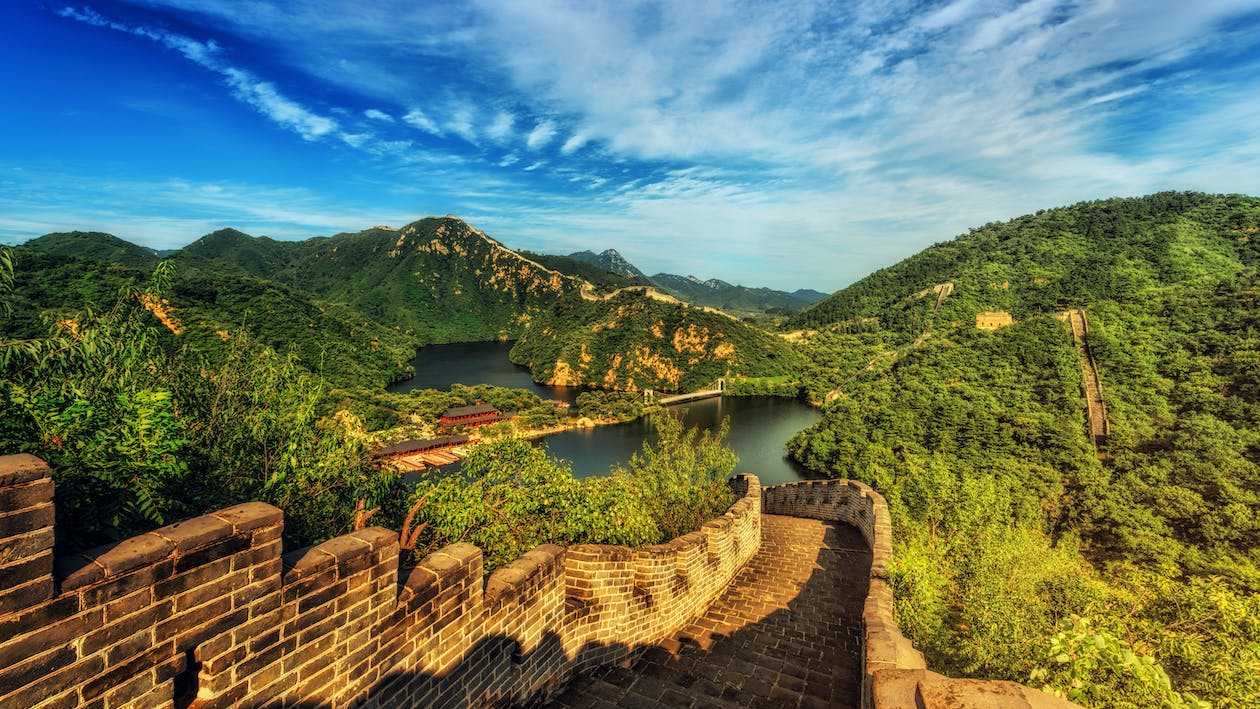
This article offers some use cases for showing how to process images via URL query string and fragment, such as resize, crop, fit, fill and align images.
| Module Path | Version |
|---|---|
github.com/razonyang/hugo-mod-images |  |
URL Concepts
The URL syntax as follows.
1URL = scheme ":" ["//" authority] path ["?" query] ["#" fragment]
The query string preceded by a question mark (?), and the fragment preceded by a hash (#).
This module uses the query string to process images, and use fragment to align images.

, which crop the image in size 300x120, change the brightness as -10 and floating the image to the end (right).
Image Types
| Type | Description | Example |
|---|---|---|
| Site Image Resource | The images located in the assets directory. | /images/foo.png |
| Page Image Resource | The images located in the page’s directory. | bar.png |
| Static Image | The images located in the static directory. | images/fizz.png |
| External Image | The external image. | https://example.com/images/buzz.png |
The image resources begin with a leading slash / will be treated as a site image resource.
Most of the processing methods work only on image resources, except for alignment and resizing.
Aligning Images
We can easily align images by adding URL fragments. Such as #center, #float-start and #float-end represents align center, float start and float end respectively.
Aligning Images to Center
Adding the #center fragment for aligning images to the center.
For example: .

Floating Images to Start (Left)
#float-start fragment for floating images to the start, we have to wrap it inside bootstrap/clearfix shortcode to avoid breaking the layout. Please note that use %% instead of <> to render content as Markdown fully.
For example.
1{{% bootstrap/clearfix %}}
2 TEXTS AROUNDS THE IMAGE.
3{{% /bootstrap/clearfix %}}
Floating Images to End (Right)
#float-end fragment.
For example.
1{{% bootstrap/clearfix %}}
2 TEXTS AROUNDS THE IMAGE.
3{{% /bootstrap/clearfix %}}
Resizing Images
We use the URL query of image for resizing images. For example:
Specify the Width and Preserve Ratio
1

Specify the Height and Preserve Ratio
1

Specify the Width and Height
1

Cropping Images
Crop an image to match the given dimensions without resizing. You must provide both width and height. Use the anchor1 option to change the crop box anchor point.
1
- The size
[width]x[height]is required. [anchor]is optional.
| Examples | ||
|---|---|---|
 |  |  |
 |  |  |
 |  |  |
Fill Images
Crop and resize an image to match the given dimensions. You must provide both width and height. Use the anchor1 option to change the crop box anchor point.
1
- The size
[width]x[height]is required. [anchor]is optional.
| Examples | ||
|---|---|---|
 |  |  |
 |  |  |
 |  |  |
Fitting Images
Downscale an image to fit the given dimensions while maintaining aspect ratio. You must provide both width and height.
1

Image Filters
Brightness
The brightness must be in range (-100, 100).
1

ColorBalance
ColorBalance creates a filter that changes the color balance of an image. The percentage parameters for each color channel (red, green, blue) must be in range (-100, 500).
1

Colorize
Colorize creates a filter that produces a colorized version of an image. The hue parameter is the angle on the color wheel, typically in range (0, 360). The saturation parameter must be in range (0, 100). The percentage parameter specifies the strength of the effect, it must be in range (0, 100).
1

Contrast
The contrast must be in range (-100, 100).
1

Gamma
Gamma creates a filter that performs a gamma correction on an image. The gamma parameter must be positive. Gamma = 1 gives the original image. Gamma less than 1 darkens the image and gamma greater than 1 lightens it.
1

GaussianBlur
Applies a gaussian blur to an image.
1

Grayscale
Grayscale creates a filter that produces a grayscale version of an image.
1

Hue
Hue creates a filter that rotates the hue of an image. The hue angle shift is typically in range -180 to 180.
1

Invert
Invert creates a filter that negates the colors of an image.
1

Pixelate
Pixelate creates a filter that applies a pixelation effect to an image.
1

Saturation
Saturation creates a filter that changes the saturation of an image.
1

Sepia
Sepia creates a filter that produces a sepia-toned version of an image.
1

Sigmoid
Sigmoid creates a filter that changes the contrast of an image using a sigmoidal function and returns the adjusted image. It’s a non-linear contrast change useful for photo adjustments as it preserves highlight and shadow detail.
1

UnsharpMask
UnsharpMask creates a filter that sharpens an image. The sigma parameter is used in a gaussian function and affects the radius of effect. Sigma must be positive. Sharpen radius roughly equals 3 * sigma. The amount parameter controls how much darker and how much lighter the edge borders become. Typically between 0.5 and 1.5. The threshold parameter controls the minimum brightness change that will be sharpened. Typically between 0 and 0.05.
1

Examples